Current status
See whether each selected service is online and review its latest check information.
Public Status Pages
Give family, teammates, or users a clear public view of the services you choose to share. OpsHome keeps the page simple, current, and easy to understand.
One shared view
Choose the monitors you want to publish and give others one page to check. Visitors can see the current state, uptime summaries, response times, and recent incident information without opening your monitoring dashboard.
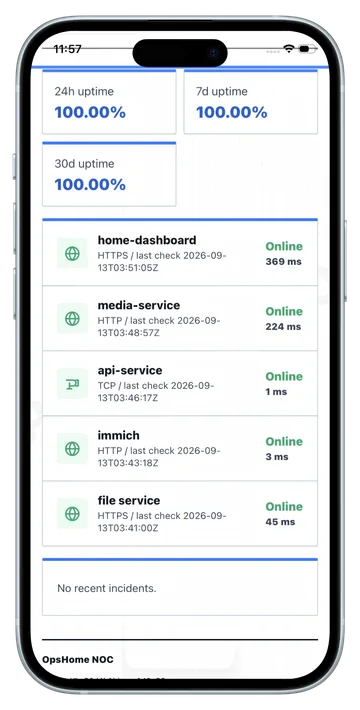
See whether each selected service is online and review its latest check information.
Review 24-hour, 7-day, and 30-day availability at a glance.
Keep recent service events visible so visitors know whether an issue is active or has recovered.
Share one status page link or QR code instead of answering the same availability question repeatedly.
Generate a QR code for a selected status page. Anyone can open it in a browser.
Scan the code in OpsHome to check the official status-page source and load the current report.
A status page works well for self-hosted services at home, shared tools for a small team, and public projects that need a lightweight availability page. It gives people the information they need while you keep the operational dashboard for yourself.
Use it alongside OpsHome alerts and the iPhone NOC view. When something changes, the status page gives everyone a consistent place to check.
Create a status page in OpsHome NOC, select the monitors to display, and share the generated page. You can update the selection or disable the page from the app when your services change.
Create a status page for the services your family, team, or users depend on.